Bottles
Bottles represent individual physical bottles in your cellar.
Before adding bottles, you must first create the associated wine and vintage. Optionally, create a storage location to track where the bottle is stored.
List View
The Cellar tab shows all bottles in a searchable, sortable list.
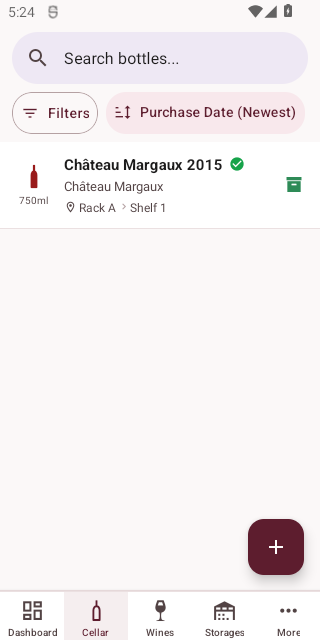
Each bottle card displays the wine name, vintage year, winemaker, storage location, status, and price.
Search
Use the search bar at the top to filter bottles by wine name.
Sorting
Tap the sort icon to choose from: Purchase Date (newest/oldest), Price (high/low), Wine Name (A-Z/Z-A), or Status.
Filtering
Tap the filter icon to narrow results by status, wine type, drinking window, or location.
Creating a Bottle
Tap the + button to add a new bottle.
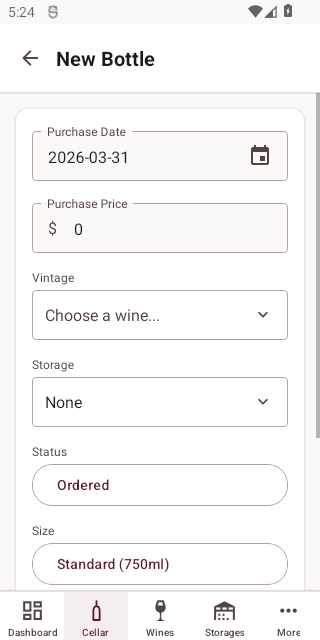
| Field | Required | Description |
|---|---|---|
| Vintage | Yes | Select the wine vintage this bottle belongs to |
| Storage | Yes | Where the bottle is stored |
| Status | Yes | Current status (ordered, stored, consumed, etc.) |
| Purchase Date | No | When the bottle was purchased |
| Purchase Price | No | Price paid for the bottle |
| Quantity | Yes | Number of identical bottles to create |
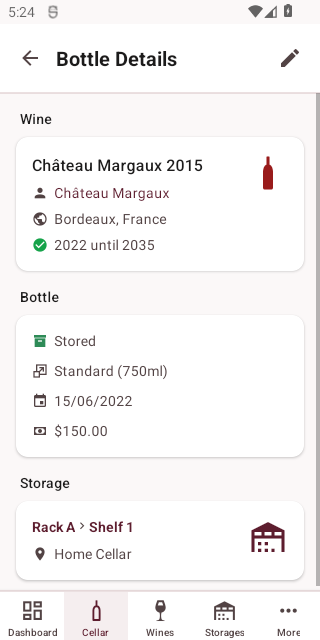
Viewing a Bottle
Tap a bottle in the list to view its full details.
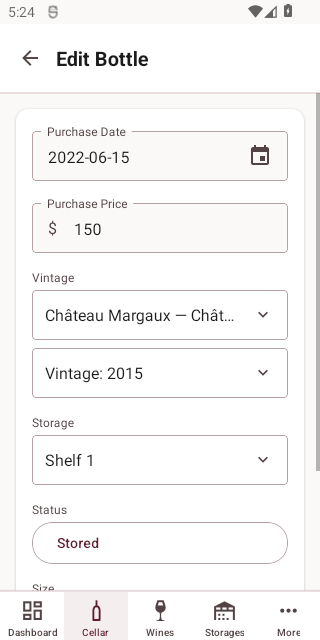
Editing a Bottle
Tap Edit on the detail screen to modify the bottle's information.
Deleting a Bottle
Tap Delete on the detail screen. You will be asked to confirm before deletion.
WARNING
Deleting a bottle is permanent and cannot be undone.