Bottles
Bottles represent individual physical bottles in your cellar.
Before adding bottles, you must first create the associated wine and vintage. Optionally, you can also create a storage location to track where the bottle is located.
List View
The bottles page shows all bottles in a searchable, filterable data table.
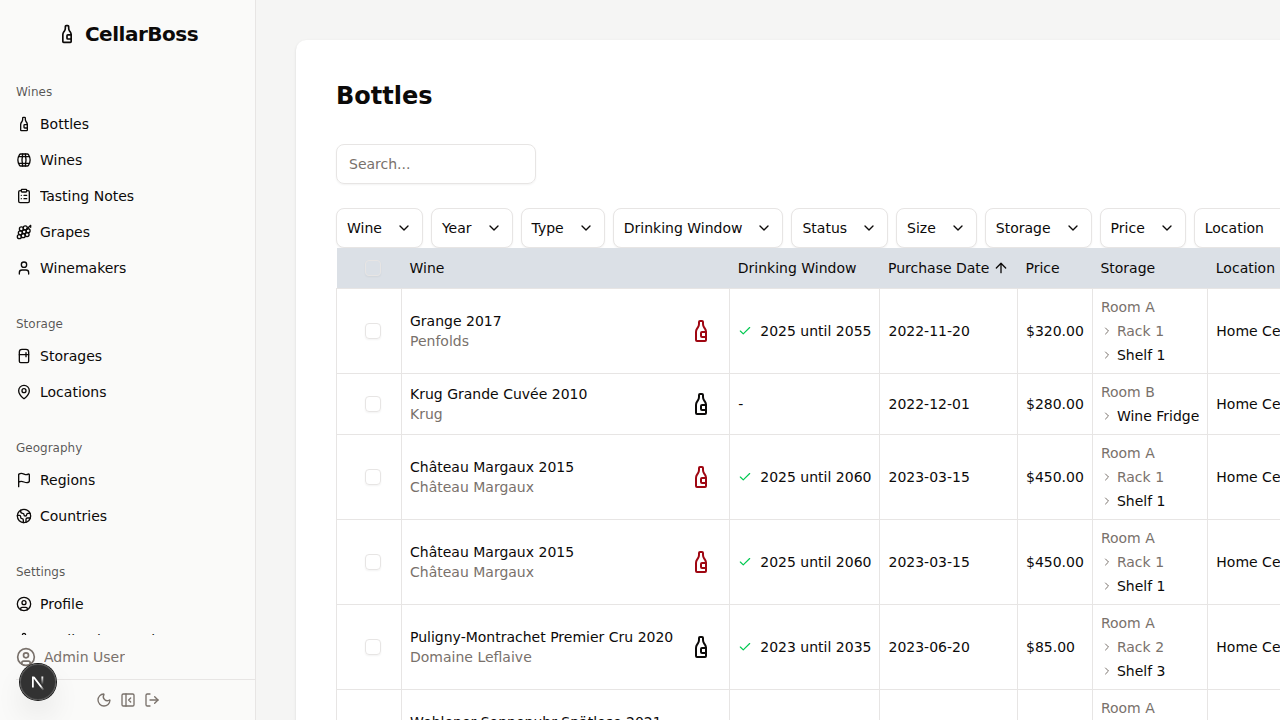
Columns
| Column | Description |
|---|---|
| Wine | Shows the wine, vintage and winemaker |
| Drinking Window | Whether or not the wine is within it's defined drinkable window (current date is after drink from and before drink until) |
| Purchase Date | When the bottle was purchased |
| Price | The price paid for the bottle |
| Storage | The current storage location |
| Location | The location in which this bottle is stored |
| Status | Current status (stored, consumed, gifted, etc.) |
| Actions | Shortcut buttons for common actions. Hover over the icon to see what each button does |
Filtering
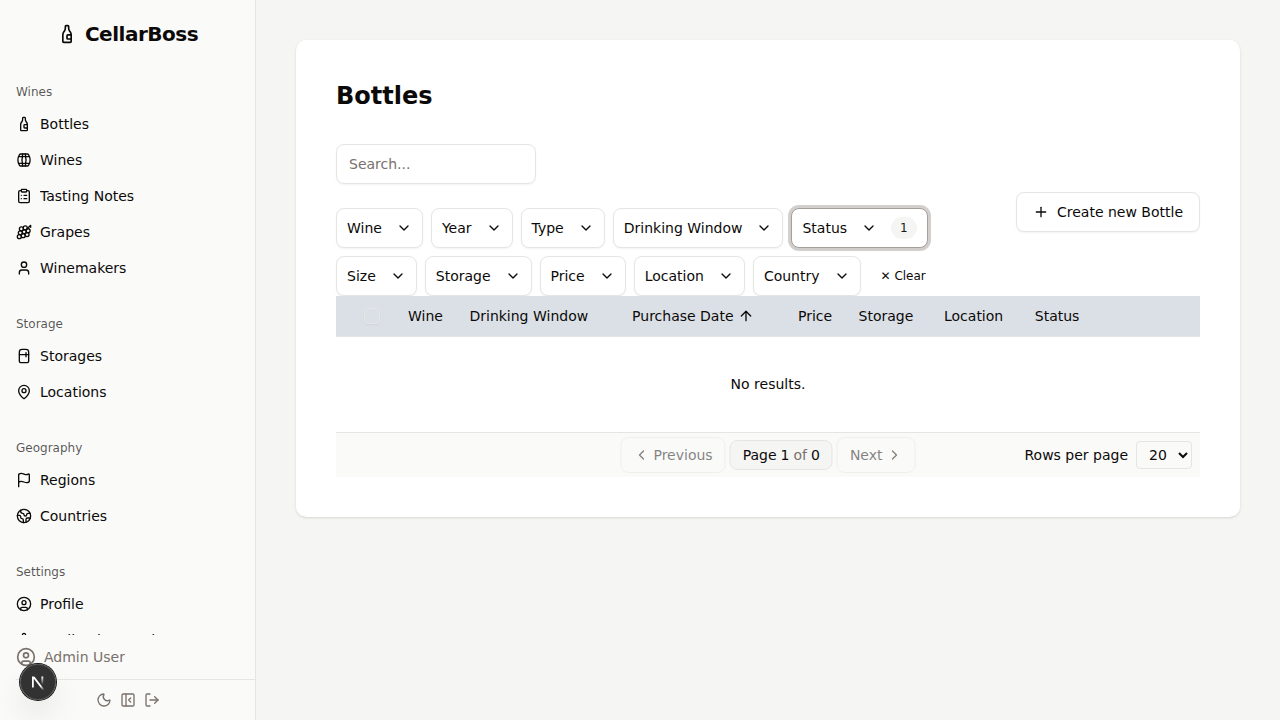
Use the filter controls above the table to narrow results by status, wine type, or other attributes. See DataTable Features for full details.
Creating a Bottle
Click the Create new Bottle button to add a new bottle to your cellar.
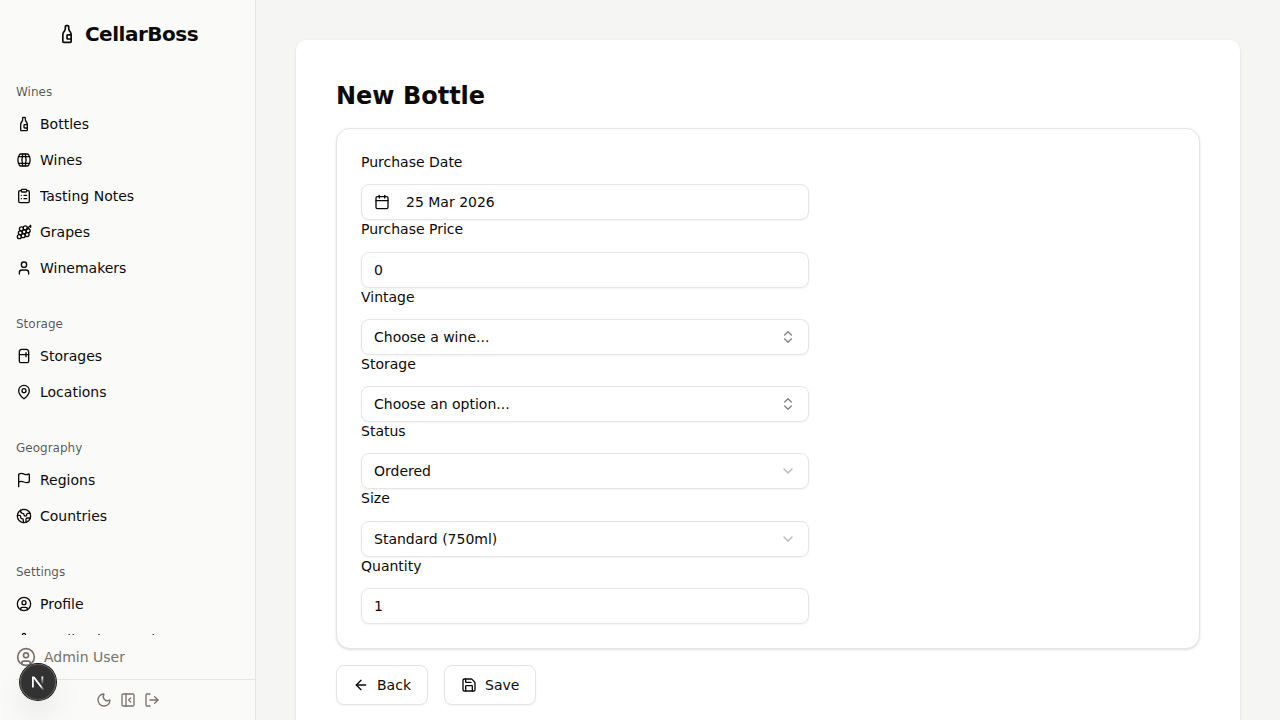
Fields
| Field | Required | Description |
|---|---|---|
| Vintage | Yes | Select the wine vintage this bottle belongs to |
| Storage | Yes | Where the bottle is stored |
| Status | Yes | The current status of the bottle (ordered, drunk etc) |
| Purchase Date | No | When the bottle was purchased |
| Purchase Price | No | Price paid for the bottle |
| Quantity | Yes | Create n identical bottles with these details. Useful when an entire case is ordered! |
Viewing a Bottle
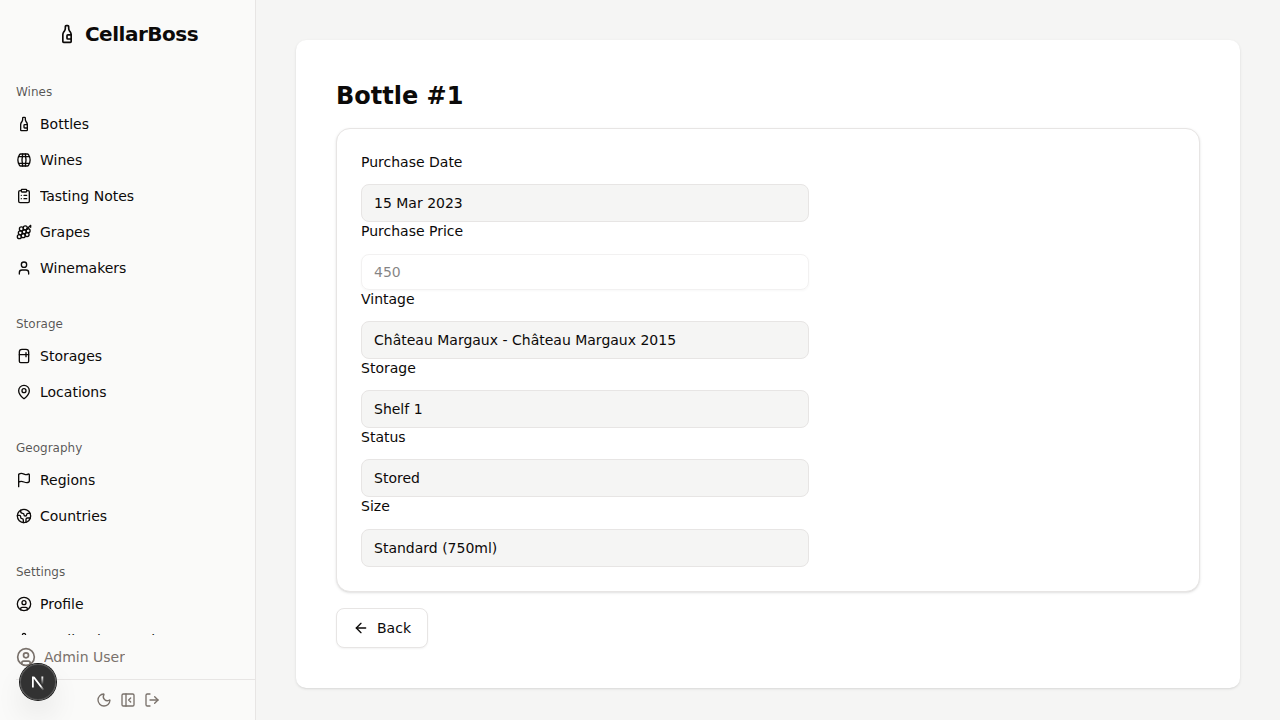
Click the View button to view the bottle's full details.
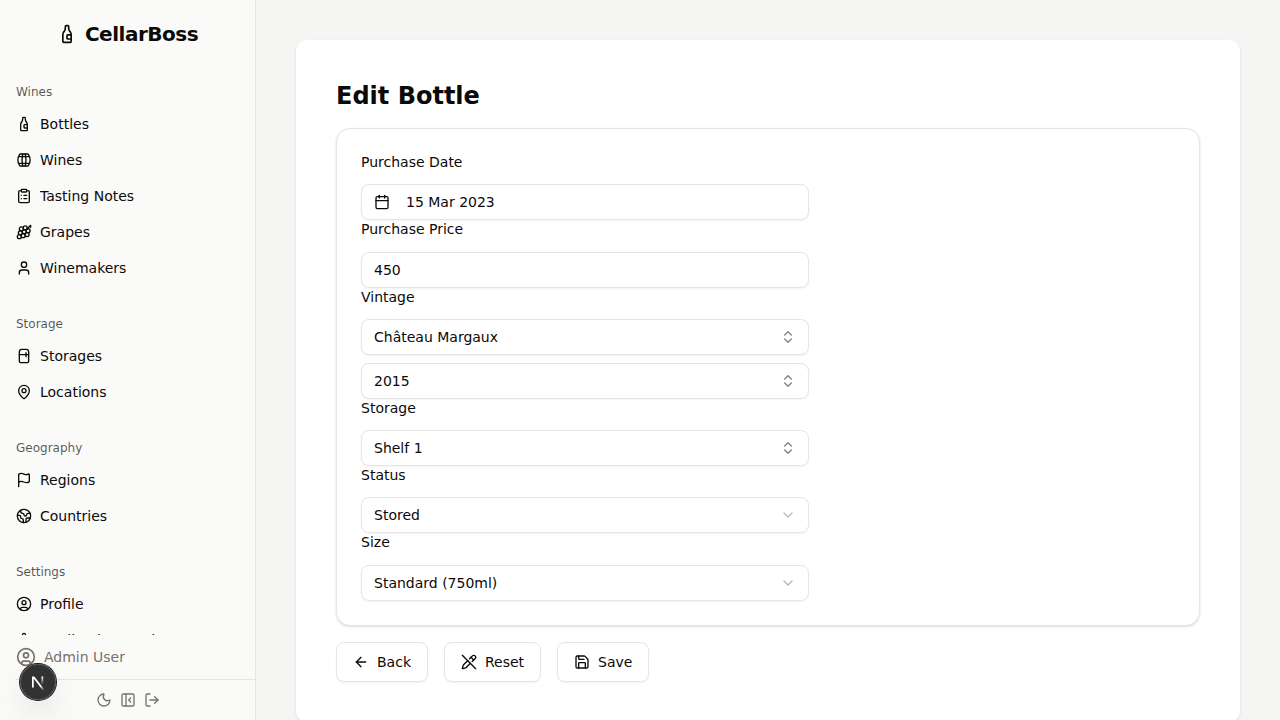
Editing a Bottle
Click the Edit button to modify the bottle's information.
Deleting a Bottle
Click the Delete button to remove the bottle. You will be asked to confirm before deletion.
WARNING
Deleting a bottle is permanent and cannot be undone.