Storages
Storages represent physical storage units within a location — such as racks, shelves, bins, or sections. Storages support a parent-child hierarchy, allowing you to model nested structures like Room > Rack > Shelf.
List View
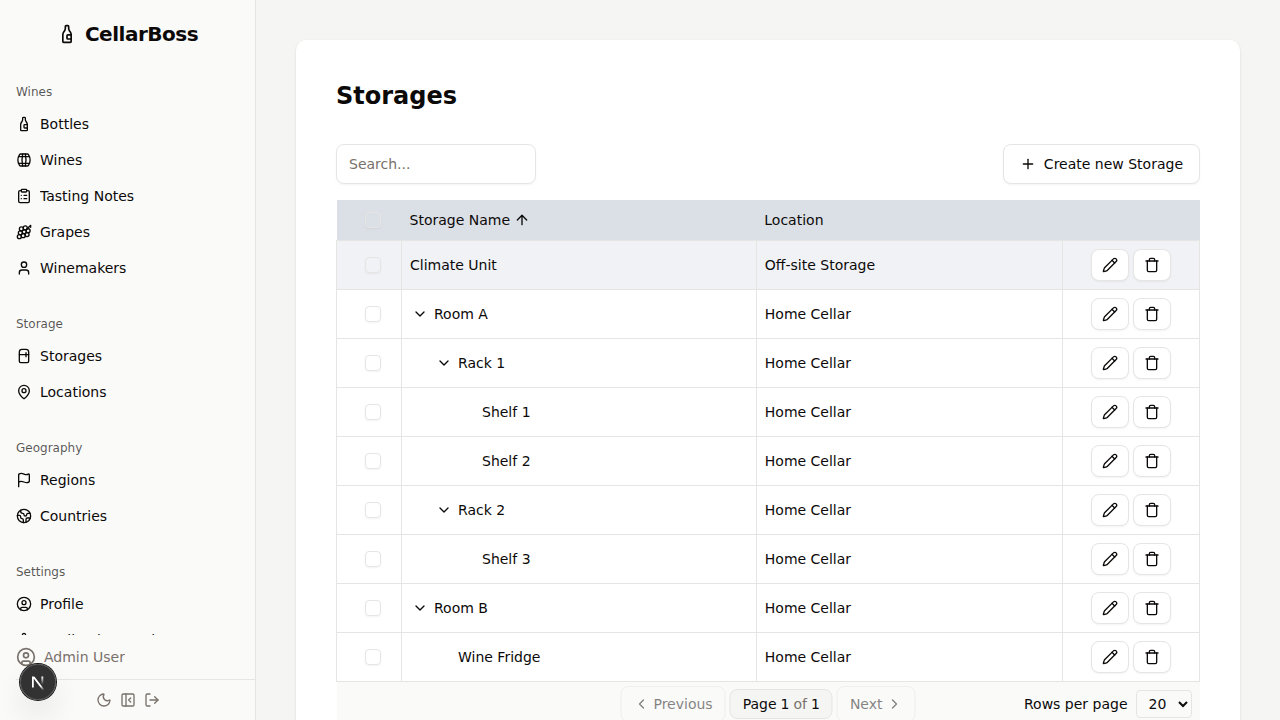
Columns
| Column | Description |
|---|---|
| Name | The storage unit name |
| Location | The physical location this storage belongs to |
| Parent | The parent storage (if nested) — displayed as a breadcrumb hierarchy |
| Actions | Shortcut buttons for common actions. Hover over the icon to see what each button does |
For more on how the hierarchy display works, see Storage Hierarchy.
Filtering
Use the Filters button above the table to show only the storages at particular locations. See DataTable Features for full details.
Creating a Storage
Click Create new Storage to add a new storage unit.
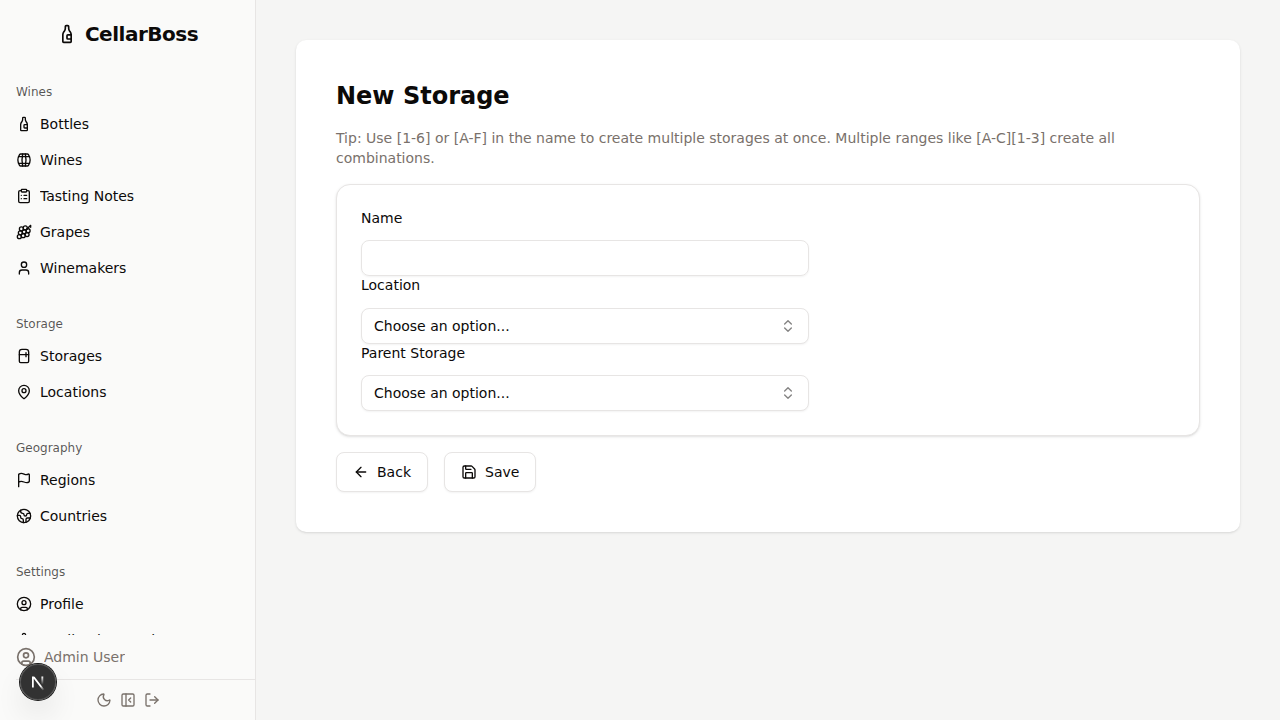
Fields
| Field | Required | Description |
|---|---|---|
| Name | Yes | The storage unit name |
| Location | Yes | The physical location this storage belongs to |
| Parent | No | An optional parent storage for nesting |
Name expansion
You can use name expansion to create multiple storages at once, with either sequential letters or numbers.
For example, entering Shelf [A-C] would create 3 separate storages:
- Shelf A
- Shelf B
- Shelf C
Entering Fridge [A-C][1-3] would create 9 separate storages:
- Fridge A1
- Fridge B1
- Fridge C1
- Fridge A2
- Fridge B2
- Fridge C2
- Fridge A3
- Fridge B3
- Fridge C3
Viewing a Storage
Click the name of the storage to view the storage's details.
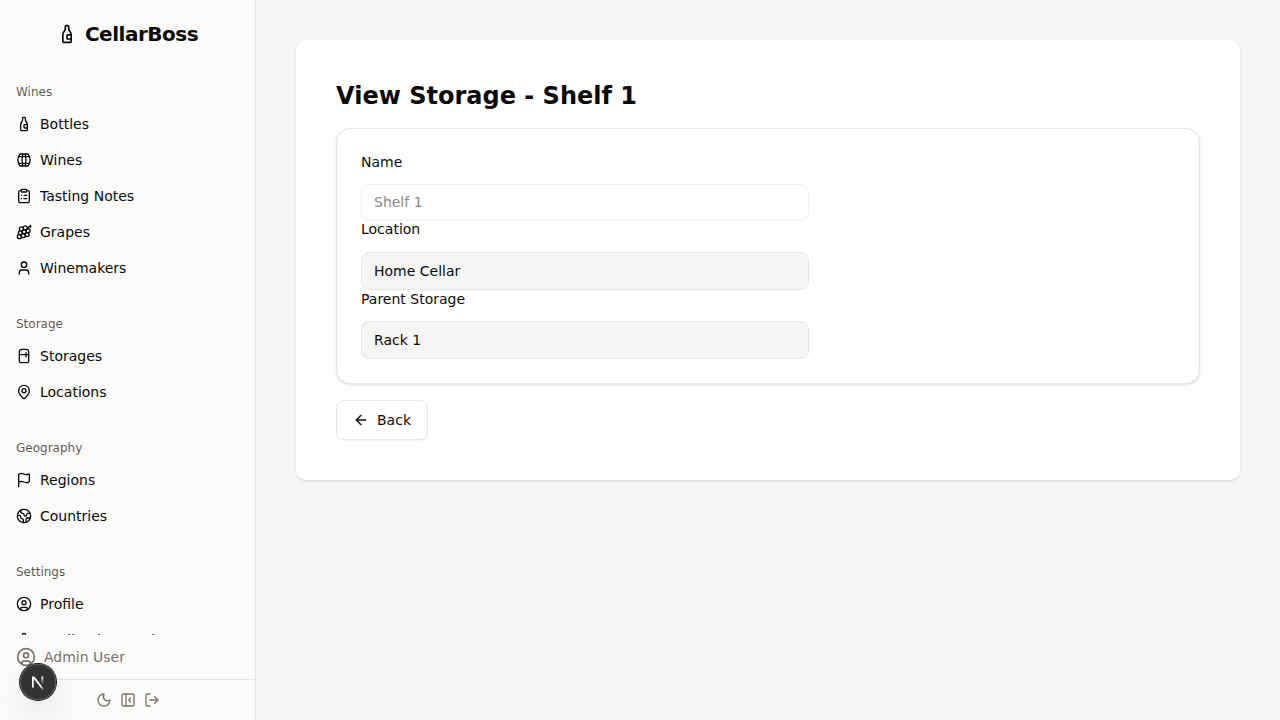
To also see bottles held in its sub-storages, turn on Include sub-storages above the bottle list. See Storage Hierarchy.
Editing a Storage
Click the Edit button to modify the storage's information.
Deleting a Storage
Click the Delete button to remove the storage. You will be asked to confirm before deletion.
WARNING
A storage cannot be deleted if it contains bottles or has child storages. Move or remove them first.